The Google Slides iPad app does not support video insertion, but that does not mean you’re stuck. By opening your presentation in Safari and switching to desktop mode, you can embed videos from YouTube, Google Drive, or a direct URL in just a few steps. This guide walks you through exactly how to do it, along with fixes for the most common issues you might run into.
Steps to Add Videos to Google Slides on iPad
Here’s how to add videos in your Google Slides presentation using an iPad:
Step 1: Access Your Google Slides
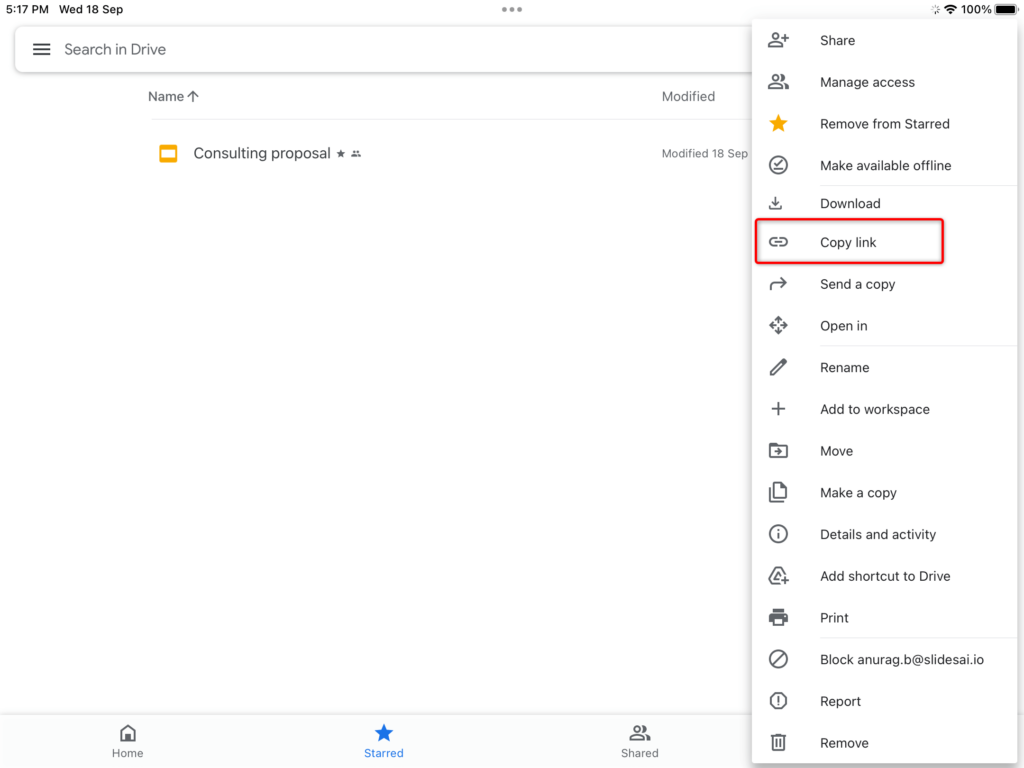
- Open the Google Drive app on your iPad.
- Find the Google Slides you want to edit.
- Tap the three dots next to the slide and select “Copy link.” This will create a link to your Google Slides.
Step 2: Open Safari
- Open the Safari browser on your iPad.
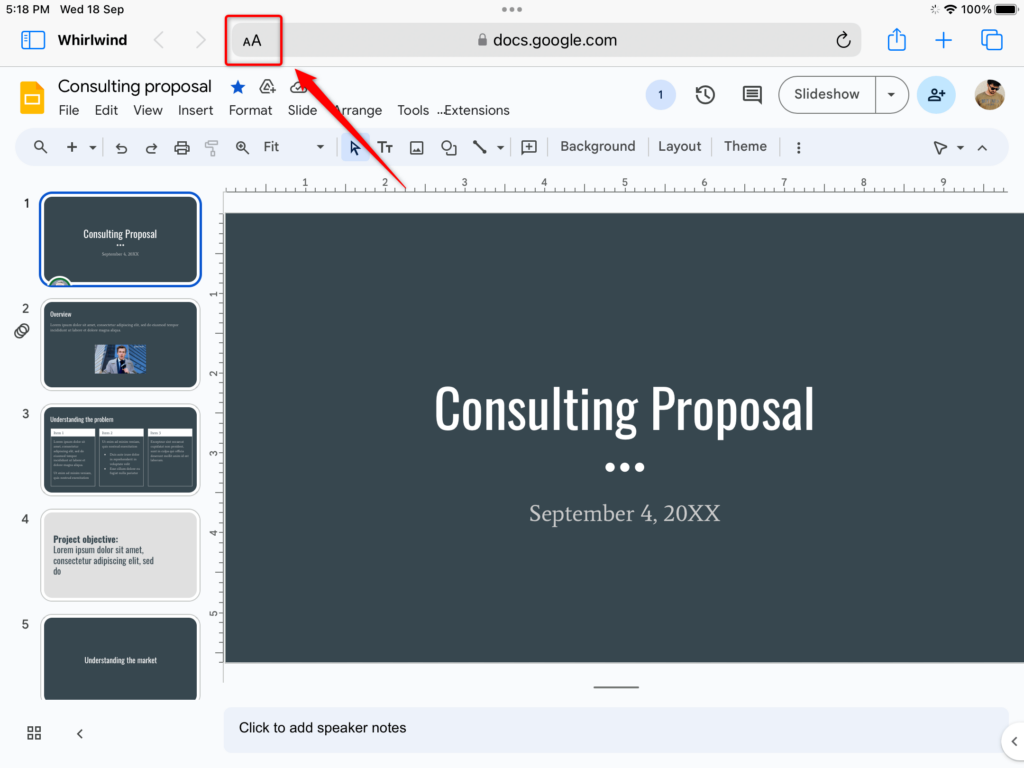
- Paste the copied link into the address bar. This will take you to the Google Slide in the web browser.
Step 3: Request Desktop Site
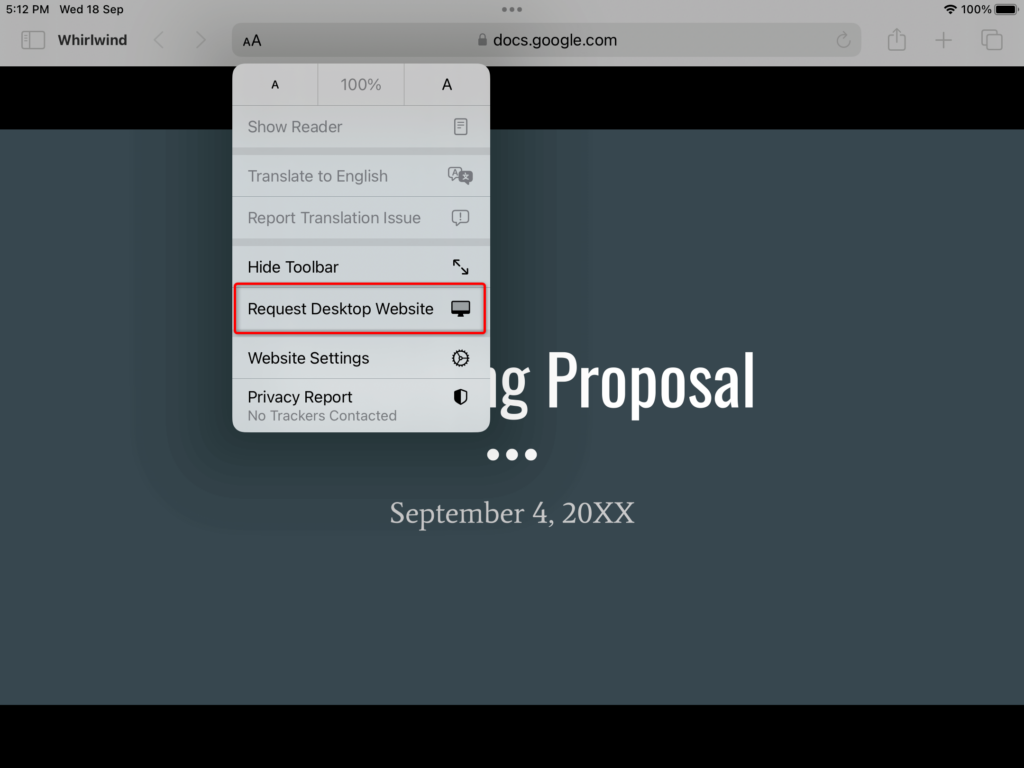
- Tap the “Aa” icon to the left of the URL bar. This will open a menu.
- Select “Request Desktop Site.” This will load the Google Slides in a desktop-like view, which is necessary for inserting videos.
Step 4: Insert the Video
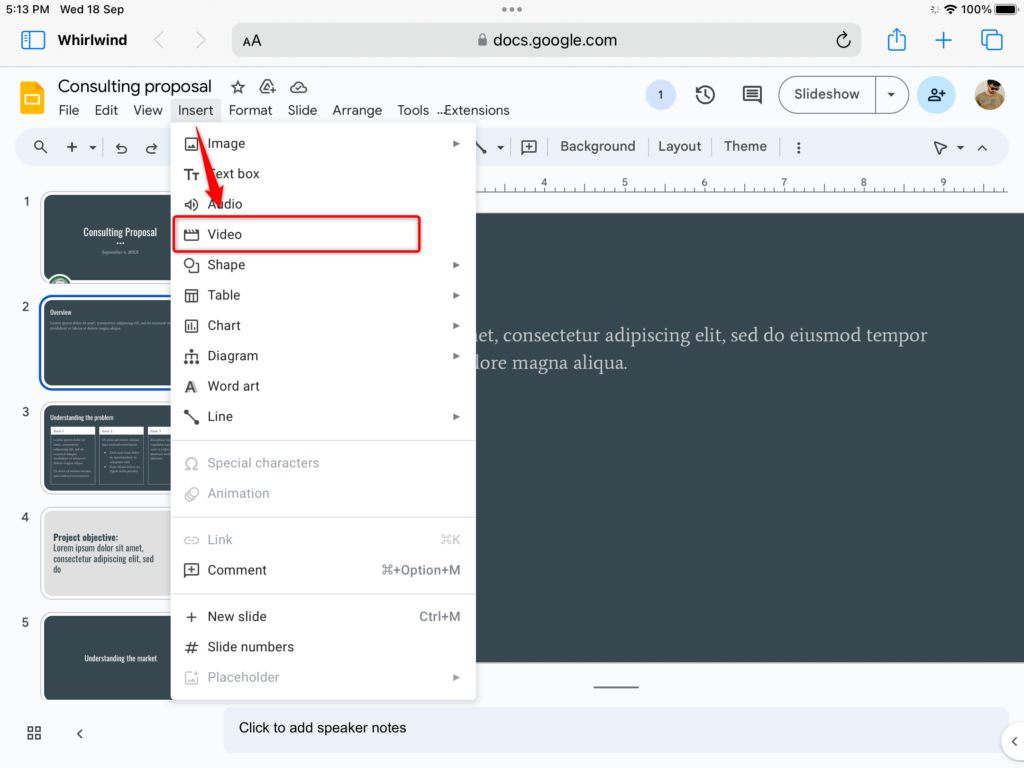
- Click the “Insert” menu at the top of the Google Slides.
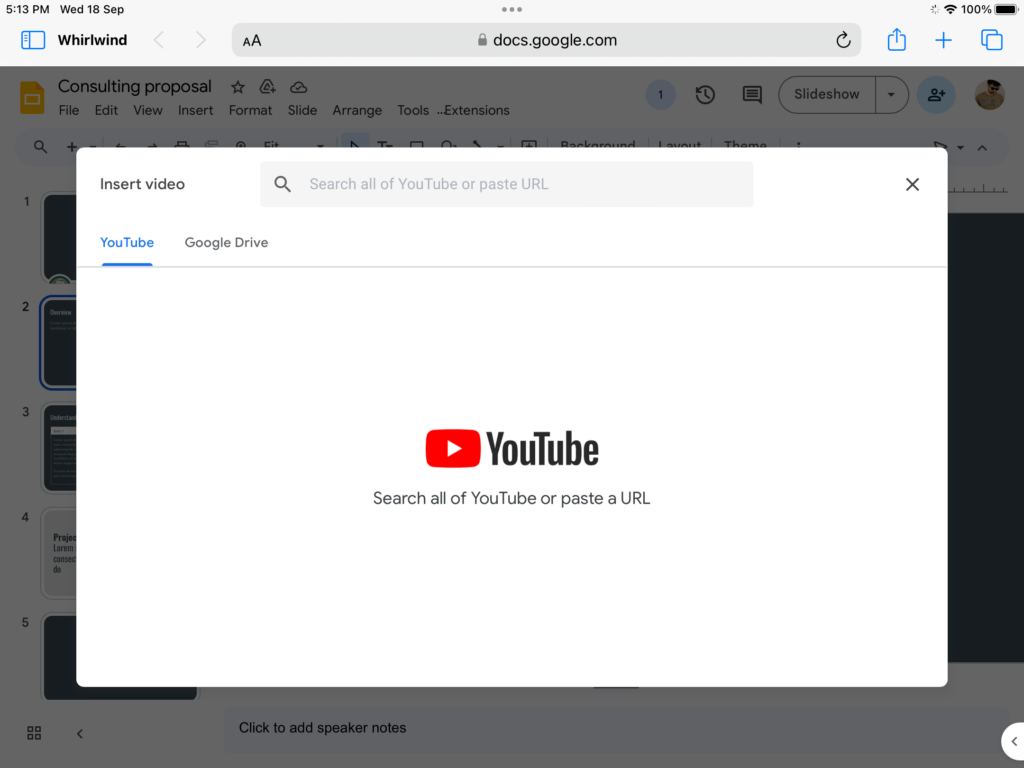
- Select “Video.” This will open a menu for selecting your video source.
- Choose your video source:
- YouTube: Search for or select a YouTube video.
- Google Drive: Choose a video stored in your Google Drive.
- By URL: Paste the URL of a video hosted elsewhere.
Step 5: Adjust and Save
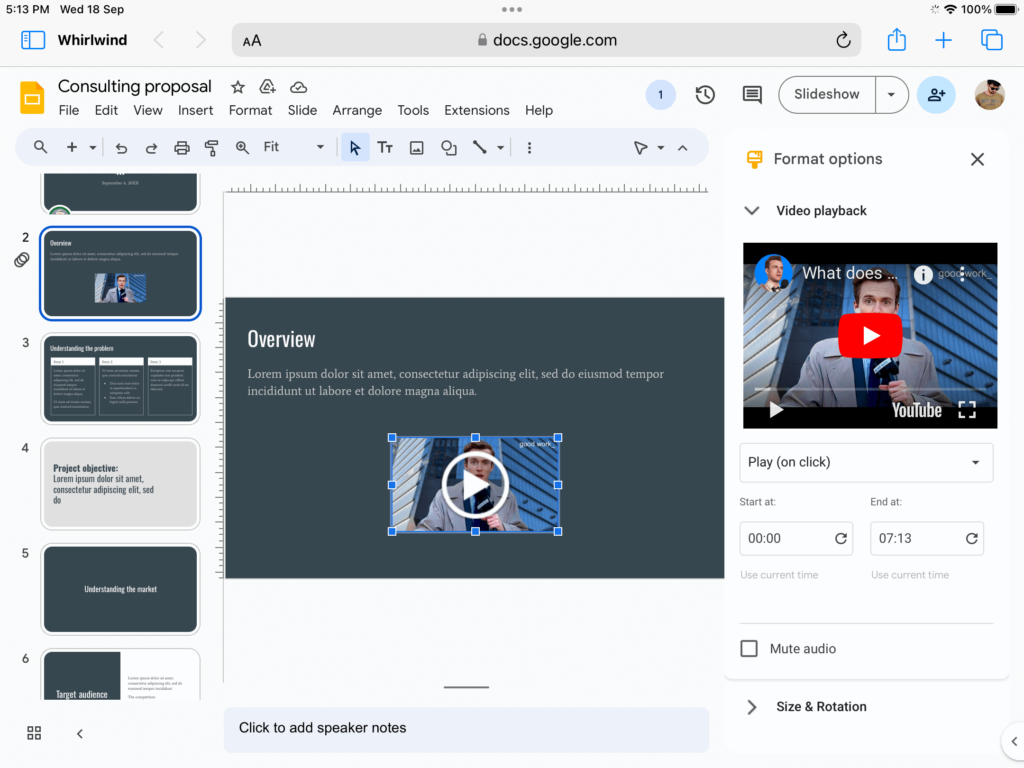
- Once the video is inserted, you can resize, reposition, and adjust its playback settings as needed.
- Remember to save your changes by clicking the “Save” button or using the keyboard shortcut (Command + S).
Get SlidesAI’s professional video presentation templates for your presentations!
Tips for Seamlessly Adding Videos to Google Slides on iPad
- Use Safari, not the Google Slides app – The Google Slides iPad app doesn’t support video insertion. Always open your presentation in Safari and request the desktop site first.
- Upload your video to Google Drive before you start – If your video is saved on your iPad, upload it to Google Drive ahead of time so it’s ready to insert without interruption.
- Stick to MP4 format for best compatibility – MP4 with H.264 encoding plays reliably in Google Slides. Convert your video first if it’s in MKV, MOV, or another format.
- Use YouTube Unlisted if you don’t want it public – You can embed a YouTube video set to “Unlisted.” It won’t appear in search results but will still play inside your presentation.
- Set Drive sharing to “Anyone with the link” before presenting – If your video is hosted on Google Drive, make sure sharing permissions are open, or it will silently fail to load for your audience.
- Add a “Tap to play” label near the video on the slide – Autoplay with audio is blocked by default on iPads. A visible prompt helps your audience know to tap the video to start it.
- Test the video on the same Wi-Fi you’ll present on – School and corporate networks often block YouTube. Run a full test on-site beforehand so you’re not troubleshooting mid-presentation.
- Keep video files under 200MB for smooth playback – Large files can buffer or stall, especially on shared networks. Compress your video using a free tool like HandBrake if needed.
- Resize the video immediately after inserting it – Newly inserted videos often land at a default size that doesn’t fit the slide. Drag the corners to resize and reposition before saving.
- Always save a backup link on a nearby slide – Paste the video URL as plain text on a hidden slide so you can open it directly in a browser if the embedded version fails during your presentation.
Troubleshooting Common Issues in iPad
1. “Insert > Video” option is missing
Problem: You’re using the Google Slides app on your iPad and can’t find the option to insert a video.
Solution: The Google Slides app doesn’t support video insertion on iPad. Open your presentation in Safari instead, tap the “Aa” icon in the address bar, select “Request Desktop Site,” and the Insert > Video option will appear in the menu.
2. The video won’t play during the presentation
Problem: You’ve inserted the video, but it doesn’t play when you tap it in presentation mode.
Solution: Check that your internet connection is active. If the video is from Google Drive, confirm the sharing is set to “Anyone with the link.” If it’s a YouTube video, make sure it hasn’t been set to private or age-restricted since you inserted it.
3. YouTube is blocked on the network
Problem: Your video plays fine at home but won’t load during the presentation at school or work.
Solution: Host the video on Google Drive instead of YouTube. Drive-hosted videos are less likely to be blocked by institutional networks. Always test on the same Wi-Fi you’ll be presenting on.
4. The video plays without sound
Problem: The video loads and plays, but there is no audio coming through.
Solution: iPad blocks autoplay with audio by default. Tap the video manually to trigger sound. Also, check that your iPad is not on silent mode and that the volume is turned up before presenting.
5. Autoplay is not working
Problem: You set the video to play automatically, but it still requires a manual tap on the iPad.
Solution: This is an iPadOS restriction. Safari blocks autoplay with audio on mobile. Set the video to play automatically and mute it, or add a “Tap to play” label on your slide so the audience knows to tap it.
6. The video works in edit mode but not in present mode
Problem: The video plays fine when editing the slide but stops working when you switch to presentation mode.
Solution: Exit presentation mode, re-open the slide in Safari desktop mode, and re-insert the video. Ensure you’re testing in the same browser and network environment you’ll use for presentation.
7. The video is not loading from Google Drive
Problem: You inserted a video from Google Drive, but it shows a loading spinner or a blank box.
Solution: Open Google Drive, find the video file, tap the three dots, go to Share, and set access to “Anyone with the link.” Large video files can also take time to process in Drive, so wait a few minutes after uploading before inserting.
8. The video won’t play offline
Problem: You’re presenting without an internet connection, and the embedded video won’t load.
Solution: Google Slides does not support offline video playback on iPad. Make sure you have a stable internet connection at the venue. As a backup, download the video directly to your iPad’s Files app so you can play it outside of Slides if needed.
9. The video plays on the iPad but not on the projected screen
Problem: You can see and hear the video on your iPad, but it’s not showing properly on the connected display or projector.
Solution: Check your HDMI or adapter connection and make sure audio output is set to the correct device in Control Center. If using AirPlay, switch to a wired connection as AirPlay can introduce lag or drop audio during video playback.
10. The inserted video is too large or out of position
Problem: After inserting the video, it covers other content on the slide or appears in the wrong position.
Solution: Tap the video to select it, then drag the corners to resize and drag the center to reposition. Use the slide grid or alignment guides to place it neatly. Save your changes after adjusting.
Closing Thoughts
Adding videos to your Google Slides on an iPad might require a few extra steps, but it’s totally doable with the Safari browser. By following these simple steps, you can easily enhance your presentations with videos, making them more engaging and informative.
Frequently Asked Questions Related to Adding Videos to Google Slides on iPad
Will the video play offline?
The video will not play offline unless it is cached in your YouTube app or downloaded to your Google Drive app. Ensure you have an internet connection for the video to play seamlessly.
How can I ensure the video plays automatically during the presentation?
To set the video to play automatically, tap on the video in your slide, then access the video options and select “Play (automatically)” from the playback settings.
What types of videos can be added to Google Slides on an iPad?
You can add a variety of video formats, including MP4, MOV, and other formats compatible with Google Slides.
Is it possible to add videos to any slide in my Google Slides presentation on the iPad?
Yes, you can add videos to any slide in your Google Slides presentation on the iPad to enhance your content.
Can I adjust the size and position of the video once it’s added to a slide?
Absolutely, you can easily resize and reposition the video on the slide by tapping and dragging it as needed.